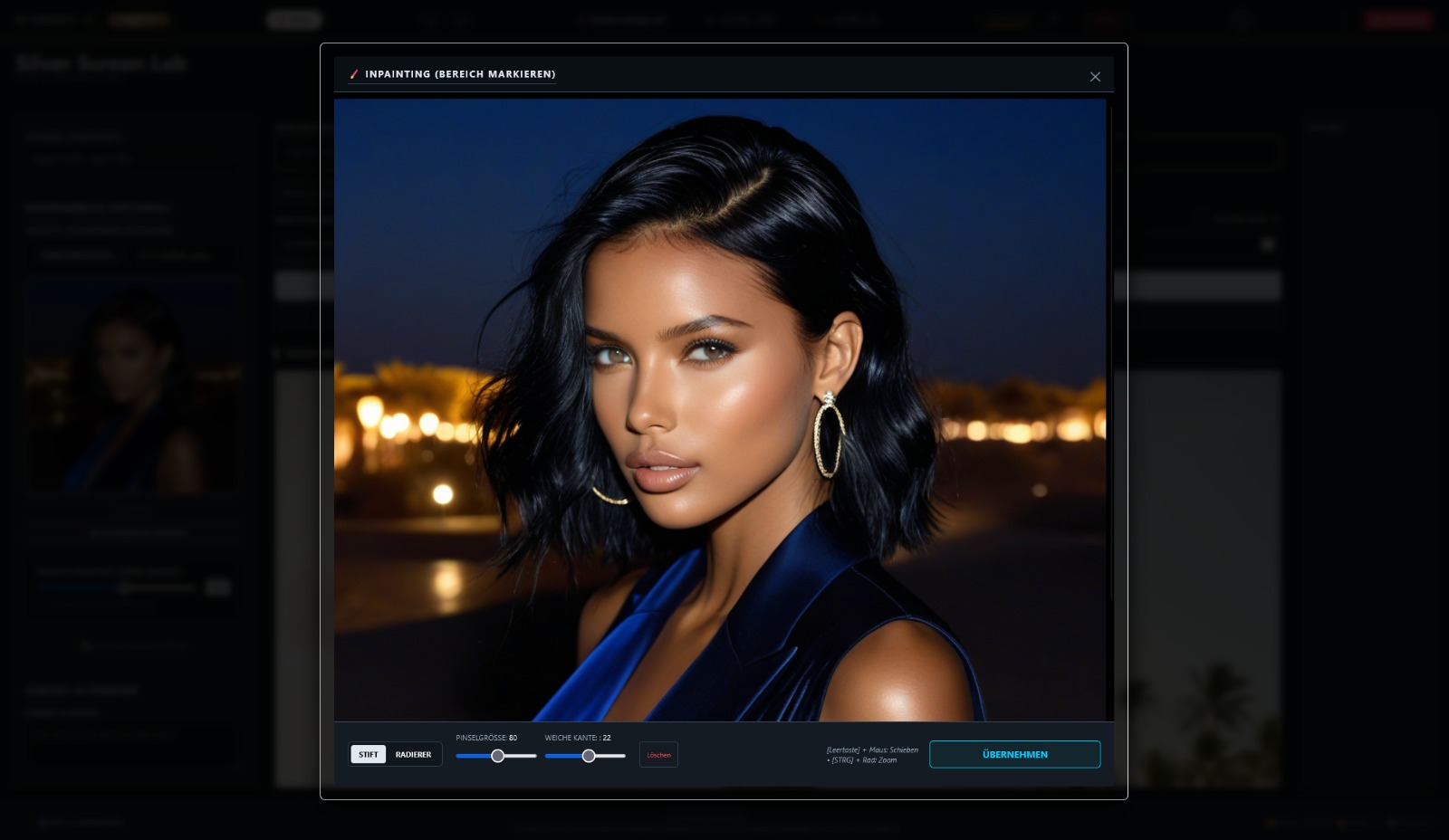
Light & Dark Mode
Adapt the studio to your environment. Whether you prefer the sleek, eye-friendly Dark Mode for late-night sessions or the clean, uncluttered Light Mode for absolute clarity – the interface adapts to your workflow.
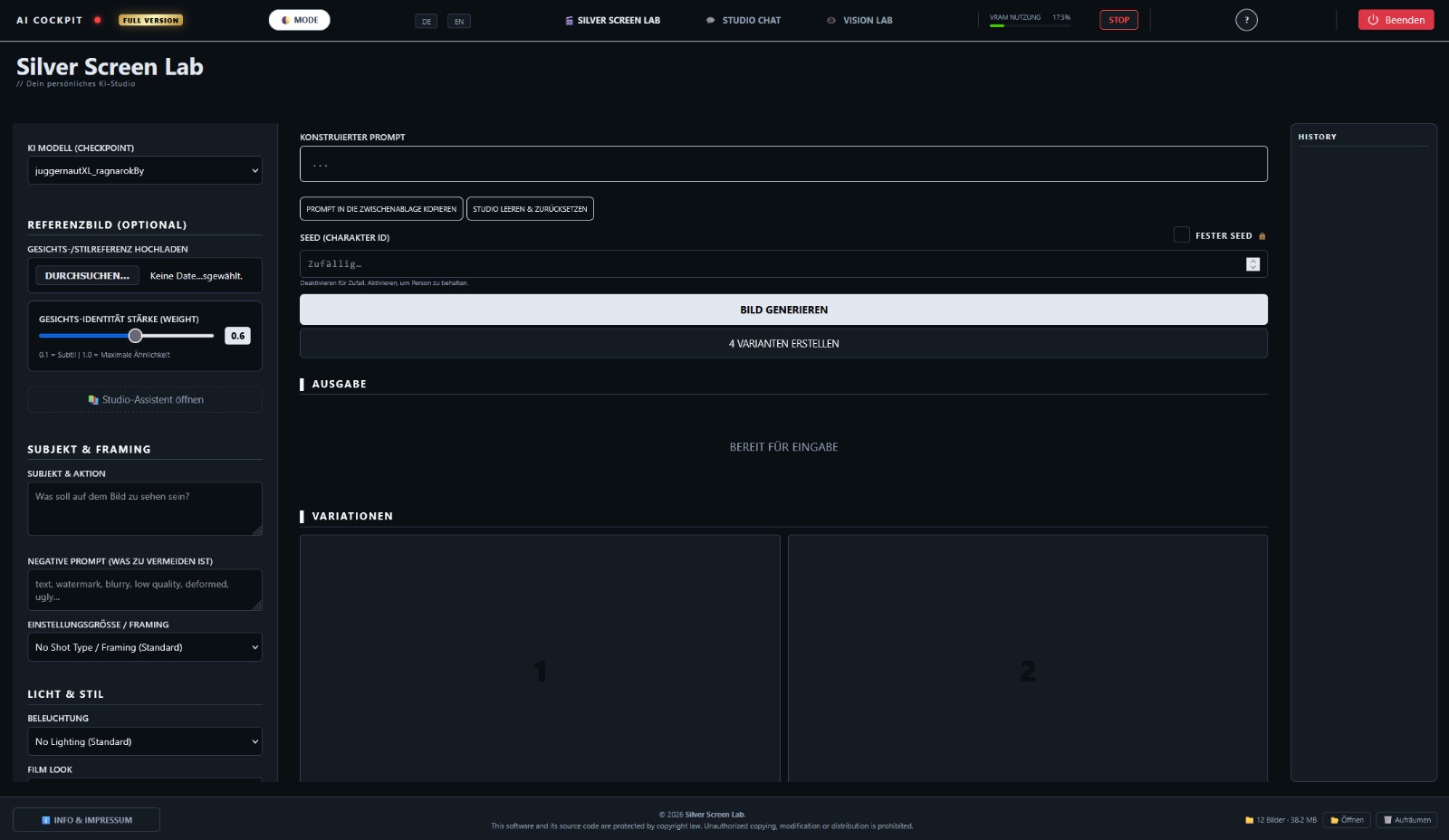
Your Art in Focus
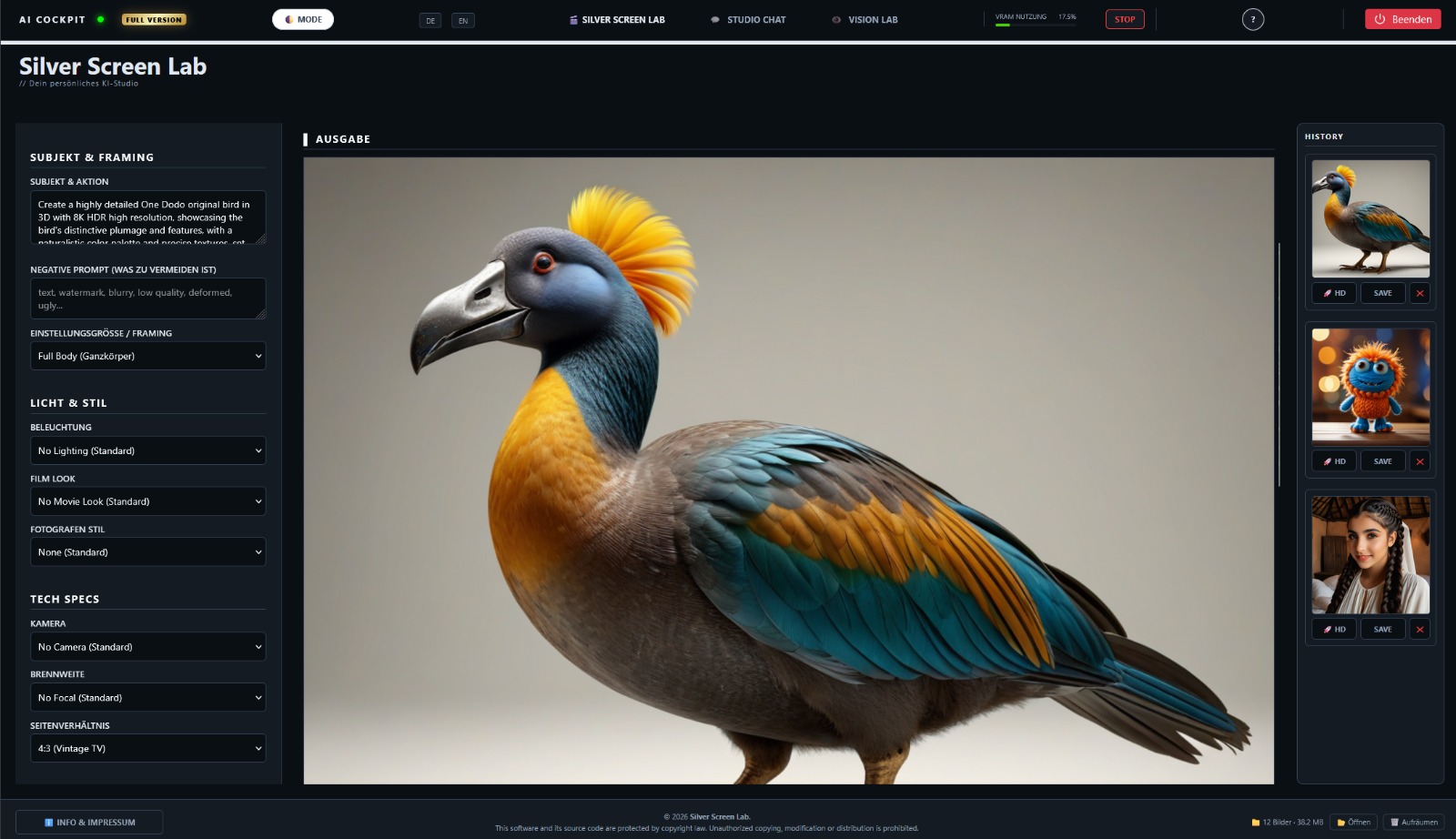
The right half of the screen belongs 100% to your masterpiece. The massive main viewer gives you a perfect overview of details, colors, and composition, without cluttered menus or popups obscuring your image.
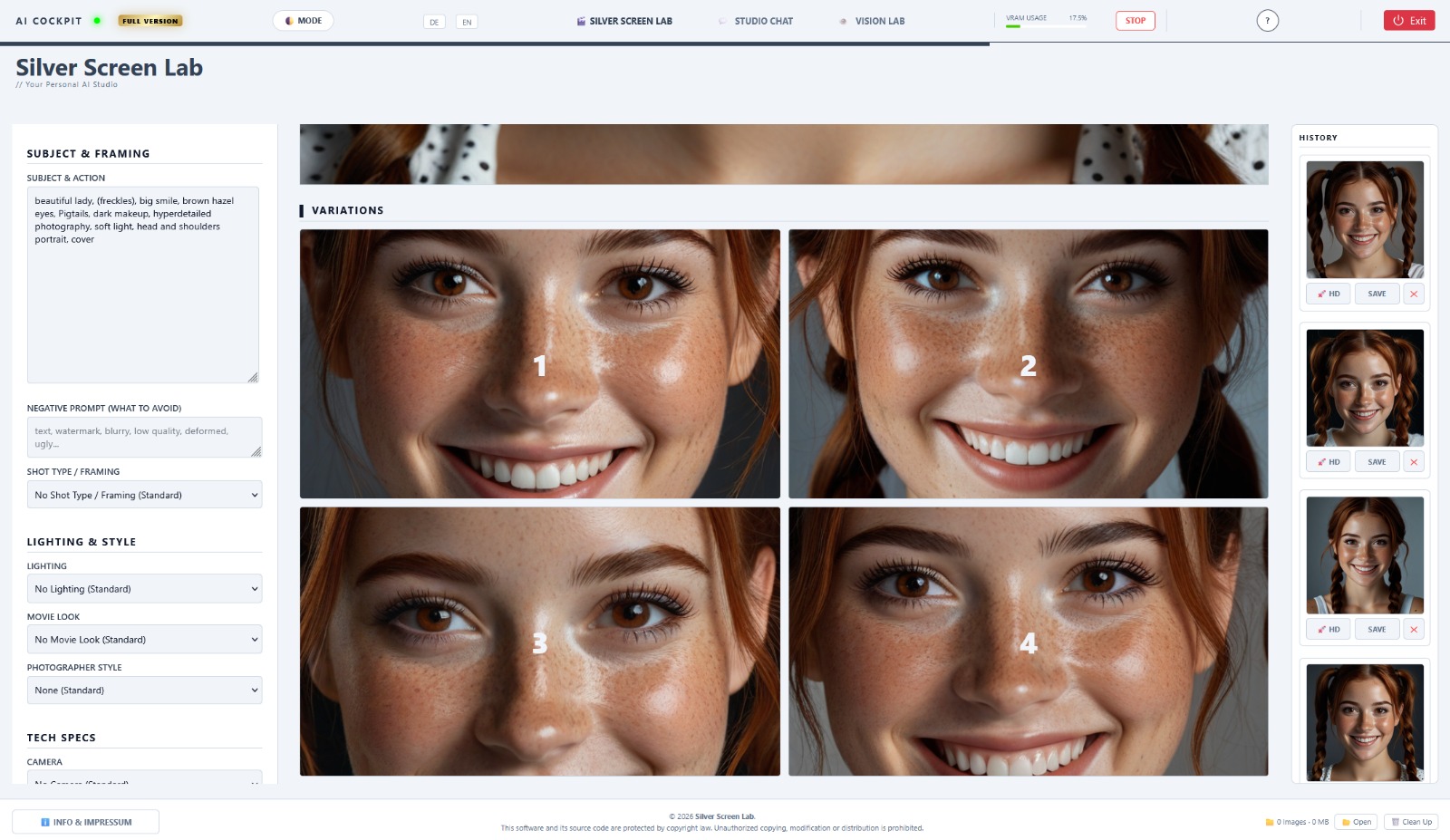
The Control Center
On the left side, you'll find all tools intelligently organized. Thanks to the smart accordion design (collapsible menus), the scrollable interface always stays clean. Select your models and checkpoints with a single click without losing focus.
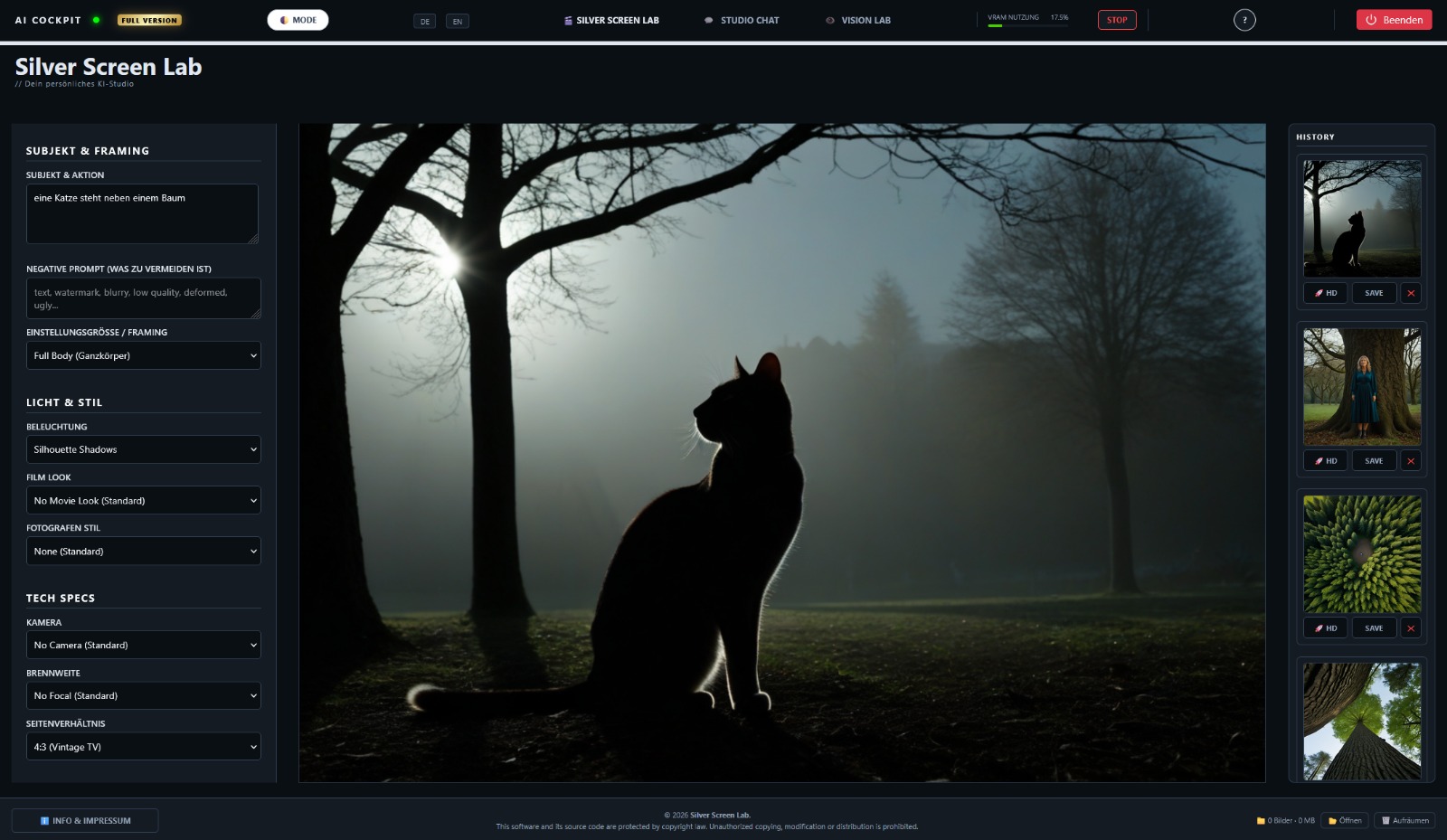
Precise Directorial Control
Directly below the image viewer, you define your scene under "Subject & Action" and enter your Negative Prompt just below it. The absolute highlight is the integrated Studio Assistant: It opens as a modal window with a single click, allowing you to instantly apply pre-defined Negative Prompts 🖼️. In the "Library" 🖼️ tab, you can also save your most successful prompts and securely export them as a JSON file to your local PC.
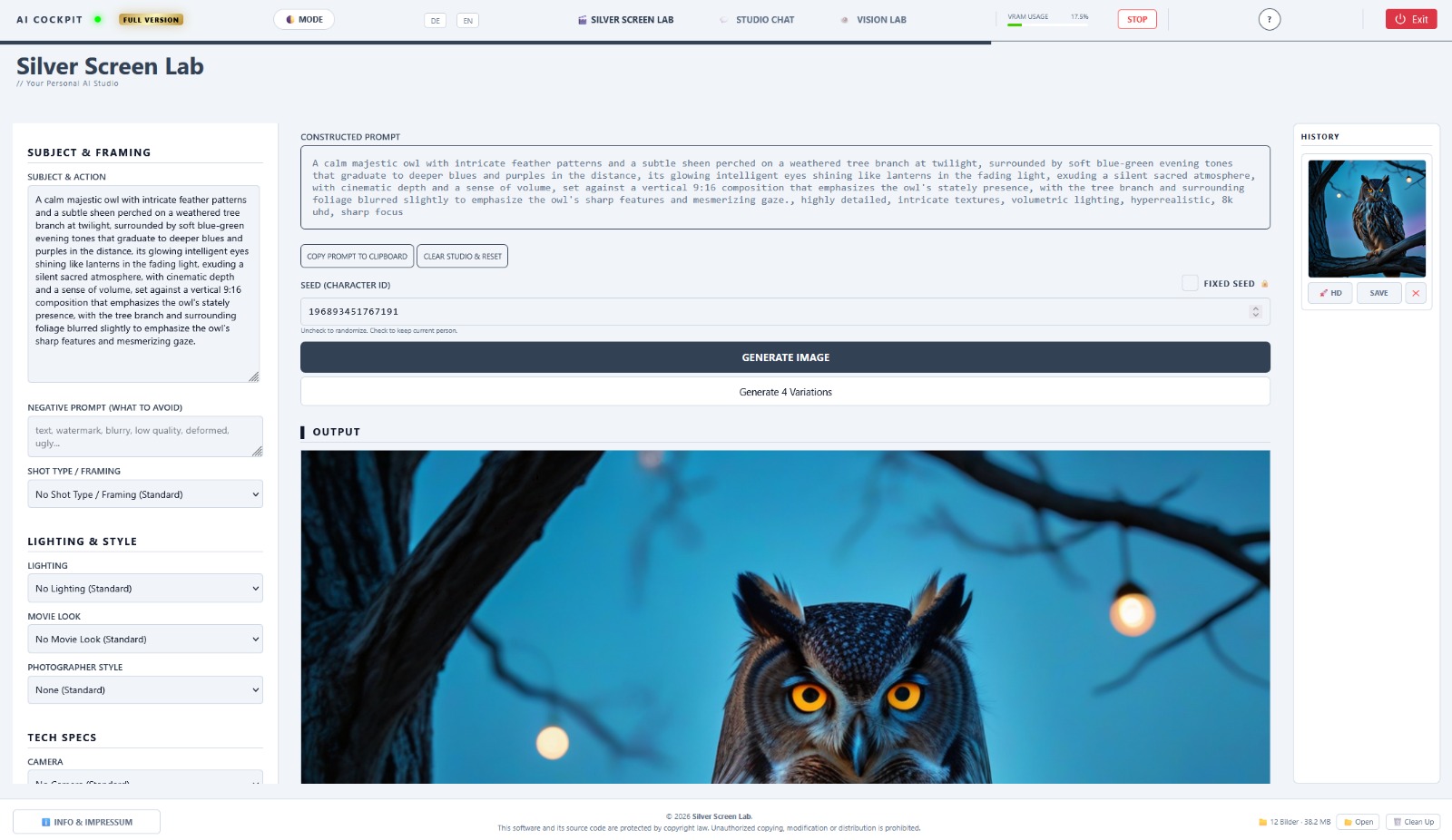
Studio Chat
Stuck or looking for inspiration? The Studio Chat acts as your personal ChatGPT directly inside the software—completely local and private. Brainstorm concepts, gather ideas, or have the AI write custom prompts for you. With a single click, you can seamlessly transfer the final text straight into your "Subject & Action" field and start generating immediately.
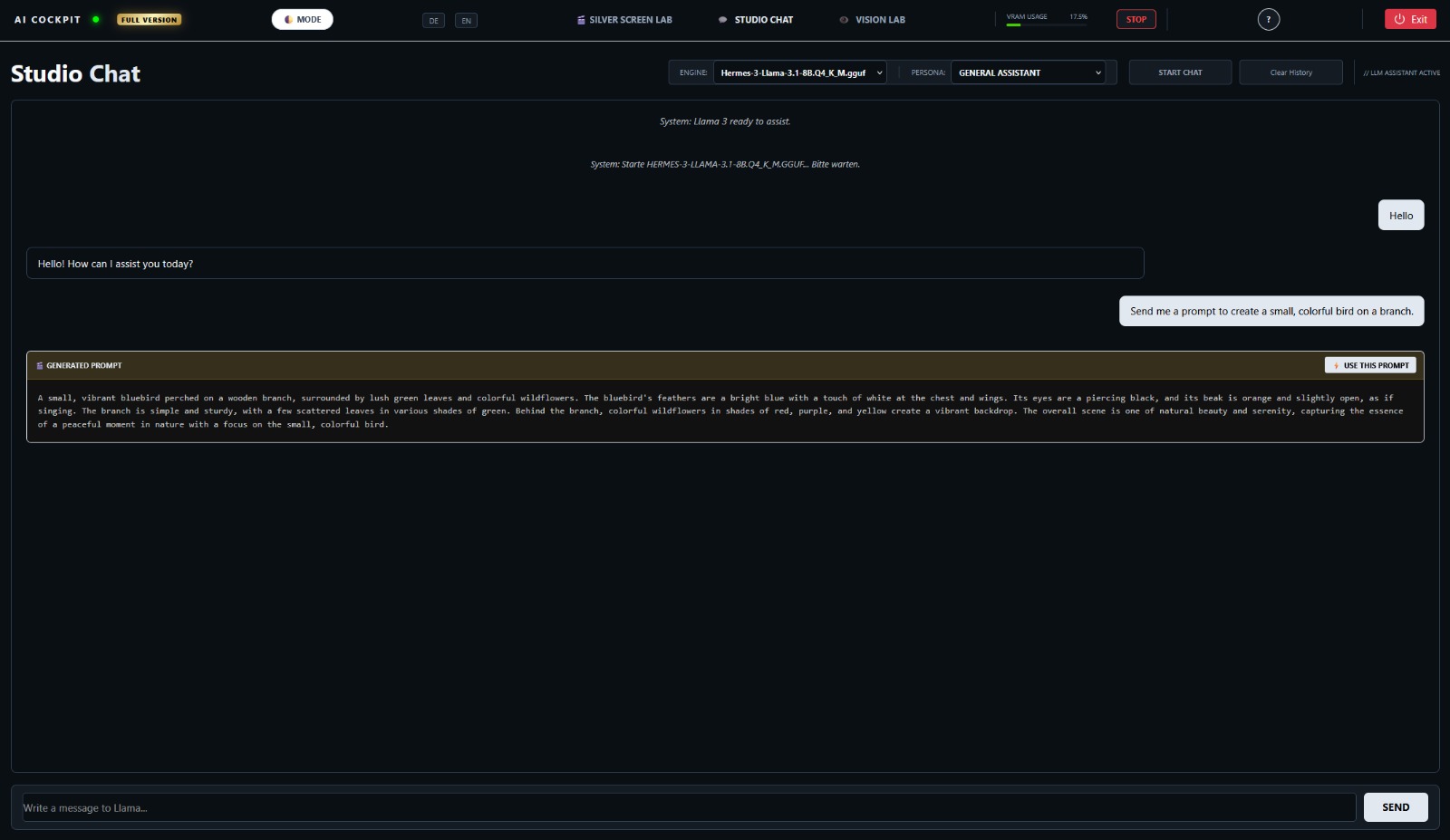
Vision Lab
Reverse engineering for your inspiration: Found a powerful reference image and want to know its prompt? Simply upload it to the Vision Lab. The AI analyzes the visual data down to the smallest detail and generates the exact text prompt for it, which you can instantly apply to your own creations.
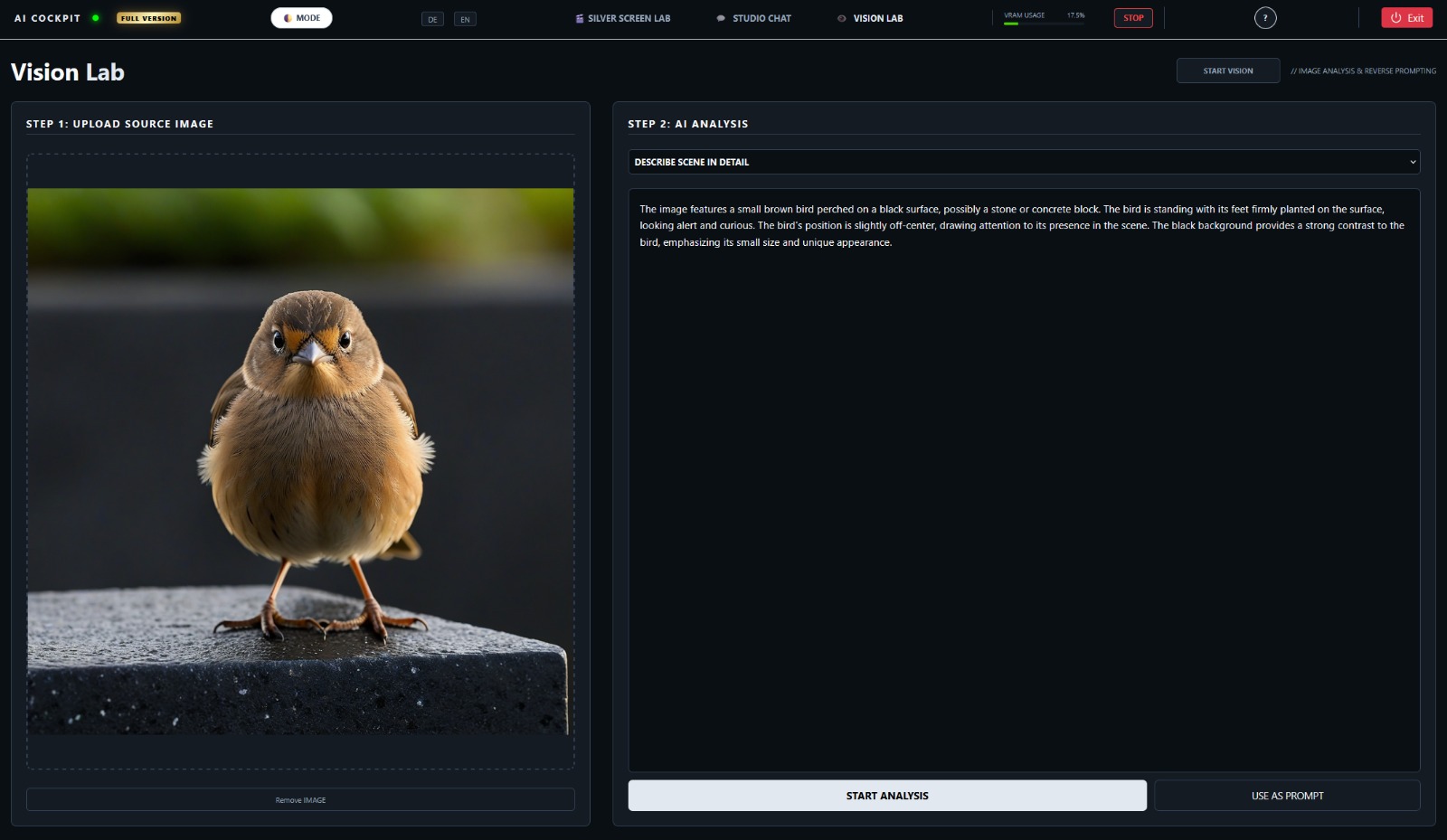
Perfect Character Consistency
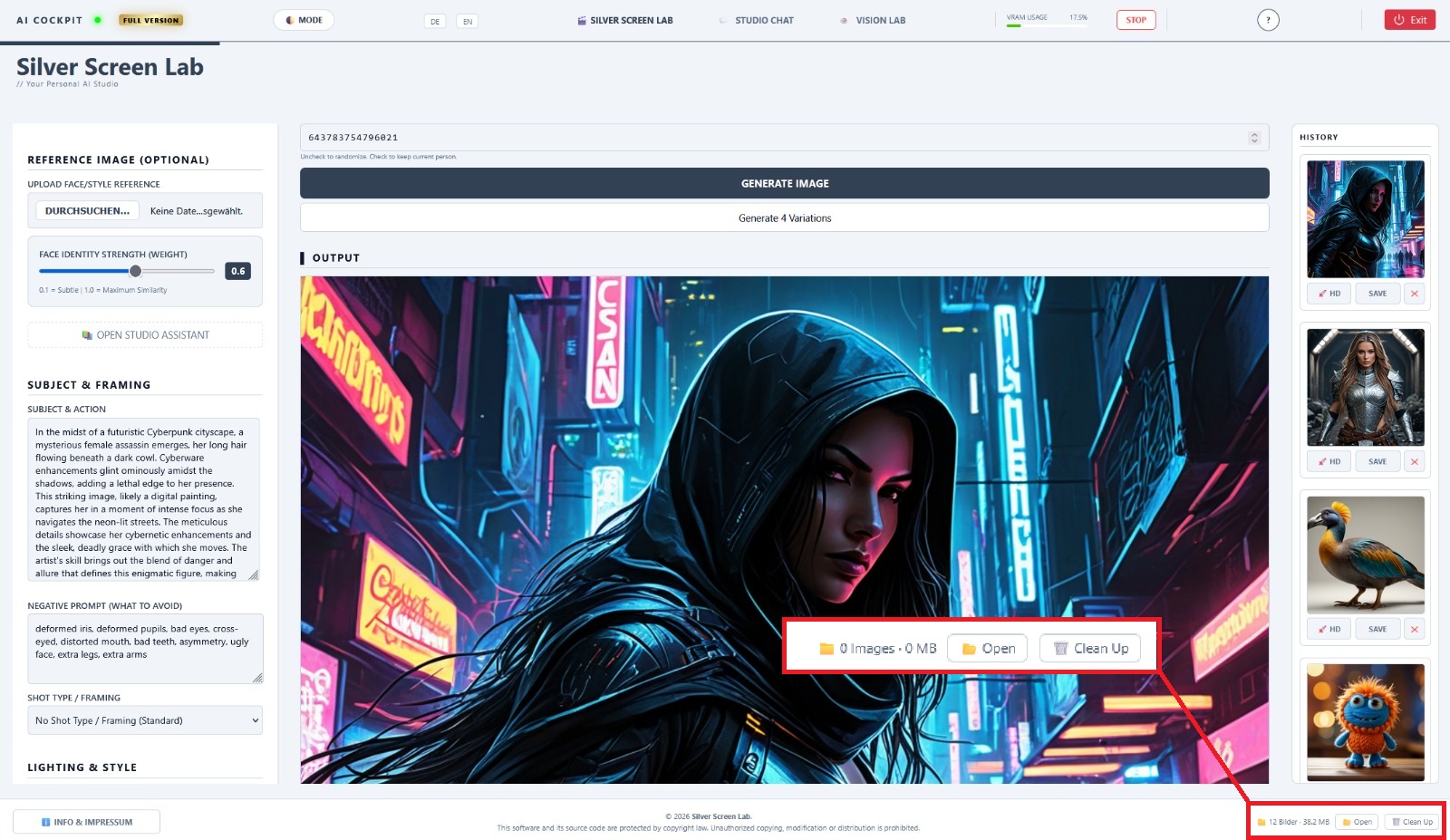
On the far left of the menu, you'll find the ultimate tool for true portrait control. Simply upload a reference image and use the "Face Identity Strength" slider to seamlessly adjust how closely the AI should match your original. This makes it incredibly easy to create recurring characters and absolutely consistent faces for your projects.
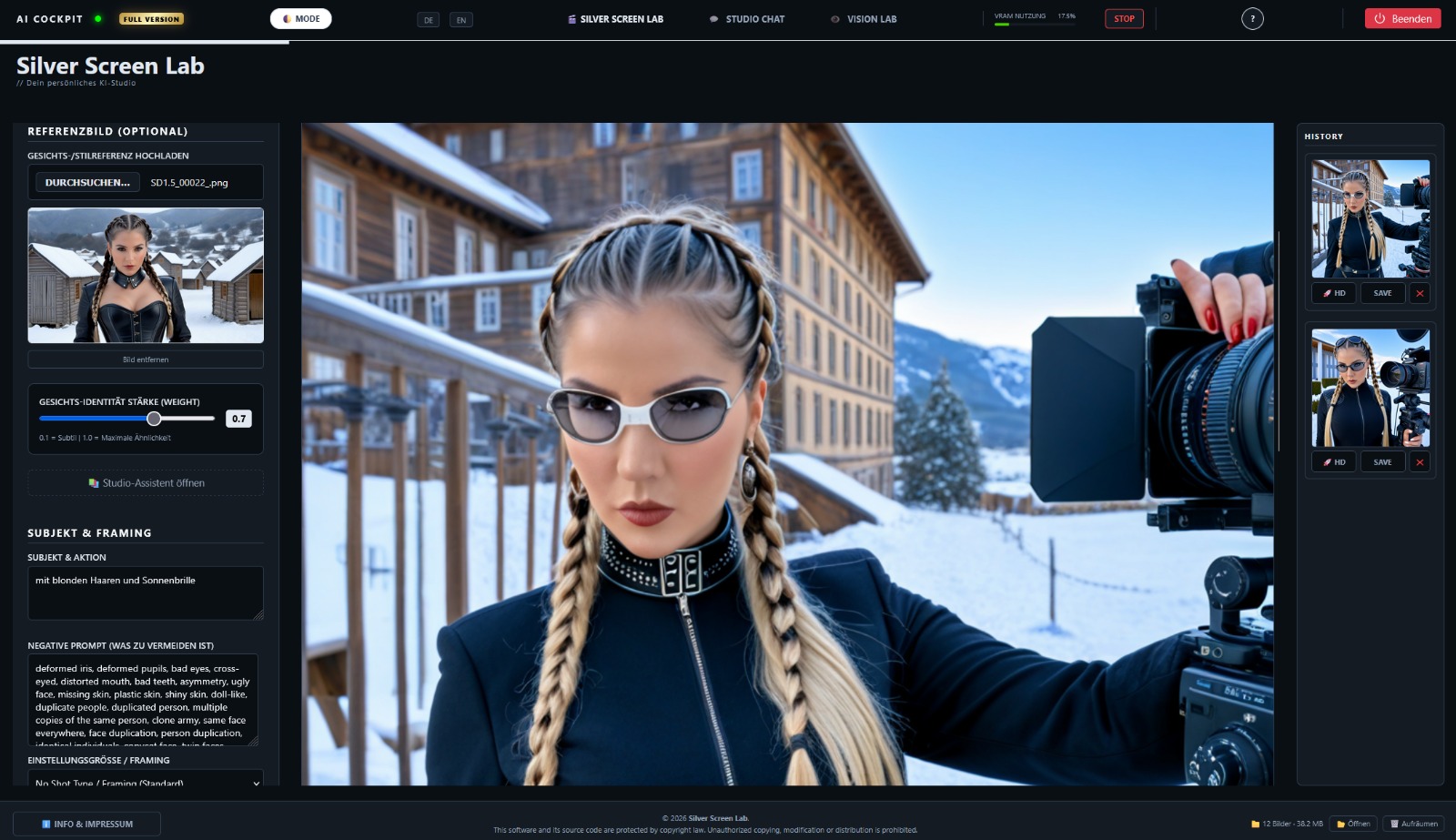
Depth for Power Users
If you need more control, simply scroll further down the sidebar. This is where the real pro tools are hidden: Define dimensions in "Image Size", tune samplers, and activate High-Res Fixes in the "Image Settings" for maximum cinematic quality.
Full Control Over Your Renders
On the right side, you'll find the History Sidebar containing all your previous results. From here, you can save images separately, upscale them instantly by clicking the HD button right on the image, or remove them from your view using the "X".
Smart Storage Management: Since the engine runs in the background, the history footer displays exactly how many images are currently stored in the output folder. Use "Open Folder" to jump directly into Windows Explorer, and hit "Clean Up" to delete all temporary files with a single click and keep your hard drive clean.
Surgical Precision Retouching
Modify your frames with pixel-perfect control. The integrated Inpainting Studio allows you to add, remove, or alter objects within your generated images. It’s the ultimate tool for filmmakers who need to adjust props, costumes, or set details without re-rendering the entire scene.
Seamless Blending: Our proprietary Soft Edge (Feathering) technology ensures that new elements blend naturally with the original lighting and texture. With live numerical feedback for brush size and softness, you stay in full control of the creative process.